Supercharging Ghidra Using Local LLMs with GhidraMCP via Ollama and OpenWeb-UI

Reverse engineering binaries often resembles digital archaeology: excavating layers of compiled code, interpreting obscured logic, and painstakingly naming countless functions and variables. While this work is both powerful and essential, aspects of it can be undeniably tedious. For years, reverse engineers and security developers have combatted this inherent complexity by building automation tools — scripts, frameworks, and utilities. The advent of AI naturally raises the question: will these efforts become obsolete? While I believe the answer is no, the landscape will inevitably evolve. Rather than replacing existing tools, AI, particularly Large Language Models (LLMs), introduces a powerful new class of capability poised to augment and transform our current workflows.
Like many in the field, I do a significant amount of binary analysis using my favorite SRE tool, Ghidra, and I often build custom tooling to accelerate specific reverse engineering and vulnerability research tasks. When LLMs first gained prominence, I initially saw them primarily as tools for explaining functions or generating boilerplate code. I wasn’t sure how they could deeply integrate into the active RE process. That perspective shifted with the advent of technologies like the Model Context Protocol (MCP). MCP acts as a bridge, allowing LLMs —which, to me, seemed primarily like conversational chatbots— to interact with, and take action through, external tools.
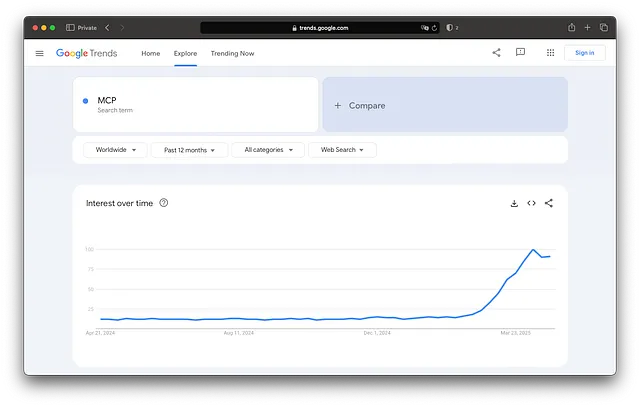
The Recent Rise of MCP
Suddenly, the possibility opened up for RE developers like us to expose our favorite tools, like Ghidra, to LLMs. There are already hundreds of MCP servers out there, but seeing LaurieWired ’s release of GhidraMCP and the demonstration video showing it working with Claude truly opened my eyes to the practical potential.## GitHub - LaurieWired/GhidraMCP: MCP Server for Ghidra
MCP Server for Ghidra. Contribute to LaurieWired/GhidraMCP development by creating an account on GitHub.
github.com
That moment sparked a deeper dive for me into understanding MCP servers and building my own capabilities — so much so that I’m excited to be teaching a workshop on building Ghidra tools and MCP servers at REcon 2025 in Montreal this June. This blog post is part of that journey, aiming to share what I’ve learned about navigating the LLM, Reverse Engineering, and MCP landscape. Specifically, I want to address one of my initial concerns: the reliance on cloud-based AI. Whether for financial reasons, privacy concerns, or the need to analyze sensitive binaries, many of us prefer or require a local setup. Therefore, this post explores how you can create a private, powerful reverse engineering assistant on your own machine by integrating Ghidra with a local LLM (via Ollama), managed through OpenWeb-UI, and connected using GhidraMCP. The article assumes a fairly high level of familiarity with reverse engineering, Ghidra, LLMs, and command-line tools/Docker, so buckle up. We’ll focus on the setup details and the crucial role of “tool calling” capabilities in making local LLMs truly (mostly?) effective for this task.
Why Local LLMs and MCP for Reverse Engineering?
When dealing with proprietary software, malware samples, or any code you don’t want exposed, using cloud-based AI services presents a significant privacy and security risk. Running LLMs locally on your own hardware keeps your data entirely under your control.
Beyond privacy, LLMs offer compelling automation potential for RE tasks:
- Intelligent Renaming: Suggesting meaningful names for functions and variables based on decompiled code analysis.
- Structure & Pattern Identification: Spotting cryptographic algorithms, specific library usage, or common coding patterns.
- Documentation Generation: Creating summaries or comments for functions and code blocks.
- Code Explanation: Answering natural language questions about specific functions or the program’s overall behavior.
But how does an LLM actually do things within Ghidra? That’s where the Model Context Protocol (MCP) comes in. MCP is a specification that allows LLMs to interact with external tools. This doesn’t have to be Ghidra, it can be a weather API, which seems to be the standard example, but could also be a Github MCP server that lets you interact with the Github API. There are several MCP servers to explore. You also, as you can see later, have the ability to add multiple MCP servers to expose several tools to your LLM.
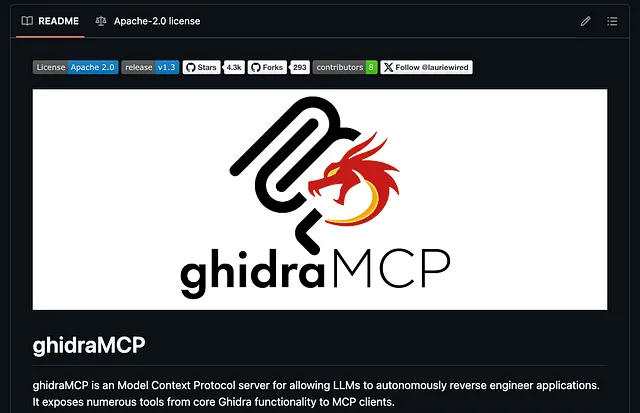
GhidraMCP
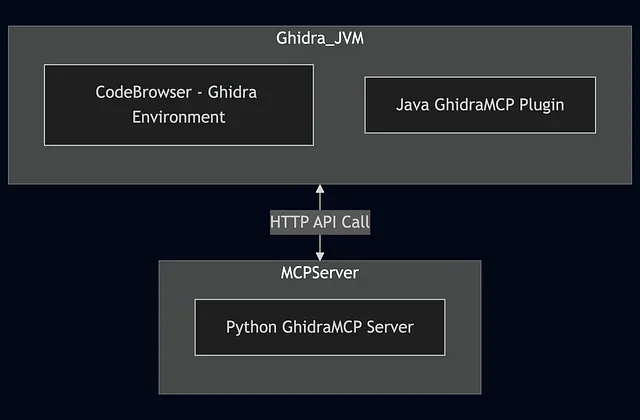
GhidraMCP is an implementation of an MCP server that exposes Ghidra’s core functionalities (like decompiling, renaming, analyzing) as callable “tools” or API endpoints. This means the LLM isn’t just a passive observer; it can actively drive Ghidra to perform actions based on your requests, enabling true automation. There are two primary components, a Java plugin which exposes the Ghidra API, and a Python based MCP server that connects to the Ghidra plugin running in the Ghidra Codebrowser. Currently, the GhidraMCP server provides a direct connection to a single binary, a 1-to-1 relationship.
The best way to see GhidraMCP in action without running through the below steps is to checkout the video.
You will notice that the demo uses Claude Desktop as the MCP client interface, powered by the external model Claude 3.7 Sonnet. That setup works well, showcasing the potential of LLM-driven Ghidra automation. Several functions are renamed by the LLM to represent their respective functionality, and all of this after a single “rename functions” request by the reverse engineer. Its success relies on the Claude model’s excellent tool-calling capabilities, which clients like Claude Desktop are designed to leverage effectively. While this sets a high benchmark, what if you want or need that power without relying on cloud LLMs or commercial software? How can we build our own, fully local stack to attempt to achieve similar results?
Setting Up Your Local RE Automation Stack
Let’s get the components installed.
- Ollama: Running LLMs Locally
Ollama makes it incredibly simple to download and run various open-source LLMs on your local machine (Windows, macOS, Linux).
- Installation: The quickest way is often via their script.
- Open your terminal and run (or one of the installers if macOS or Windows):
1
curl -fsSL https://ollama.com/install.sh | sh
- Pulling a Model: Once installed, download an LLM.
- Llama 3.1 is a capable recent model:
1
ollama pull llama3.1:8b
- Note: Running LLMs locally can be resource-intensive (CPU, RAM, and especially GPU VRAM). Choose a model size appropriate for your hardware. 8b models often require ~8GB+ RAM/VRAM,
2. ==OpenWeb-UI==: A Friendly Face for Your LLMs
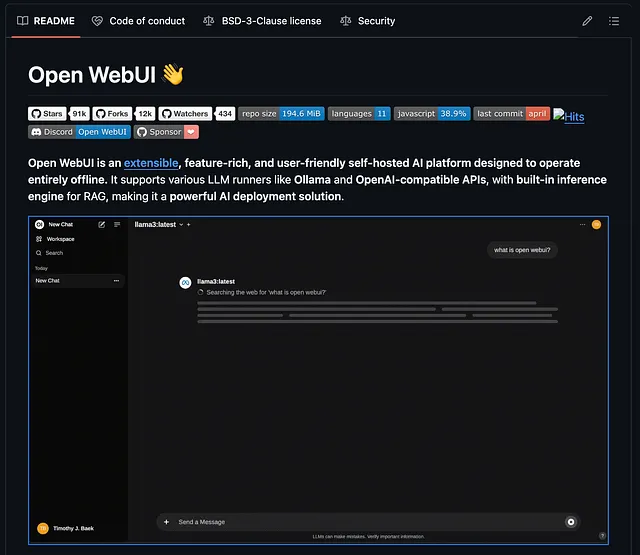
While Ollama lets you interact via the command line, OpenWeb-UI provides a polished, web-based chat interface similar to ChatGPT, making it easy to switch between models, manage them, and chat (vibe-RE 😆).
- Recommended Installation (Docker): Docker simplifies setup and dependency management. Make sure you have Docker installed. This command runs OpenWeb-UI and connects it to your local Ollama instance (assuming Ollama is running):
1
docker run -d -p 3000:8080 \   --add-host=host.docker.internal:host-gateway \   -v open-webui:/app/backend/data \   --name open-webui --restart always \   ghcr.io/open-webui/open-webui:main
- Access: Open your web browser and navigate to
http://localhost:3000. You should see the OpenWeb-UI interface. Create an account. - Connecting to Ollama: OpenWeb-UI usually detects Ollama running on
http://localhost:11434automatically. If not, or if Ollama is running elsewhere, you can configure the connection URL in the Admin Settings (Settings -> Connections -> Ollama). You should see the models you pulled with Ollama available in the model selection dropdown.
3. GhidraMCP: Bridging Ghidra and LLMs
This component connects the LLM’s “brain” to Ghidra’s “hands.”
Prerequisites:
- Ghidra installed (Official Ghidra Releases).
- Python 3.8+ installed
Download & Install:
- Go to the GhidraMCP repository (LaurieWired/GhidraMCP — check the README for the latest specifics). Download the latest release
.zipfile. - Install the Ghidra Extension: Open Ghidra, go to
File -> Install Extensions..., click the green+icon, select the downloaded GhidraMCP.zipfile, and click OK. Restart Ghidra.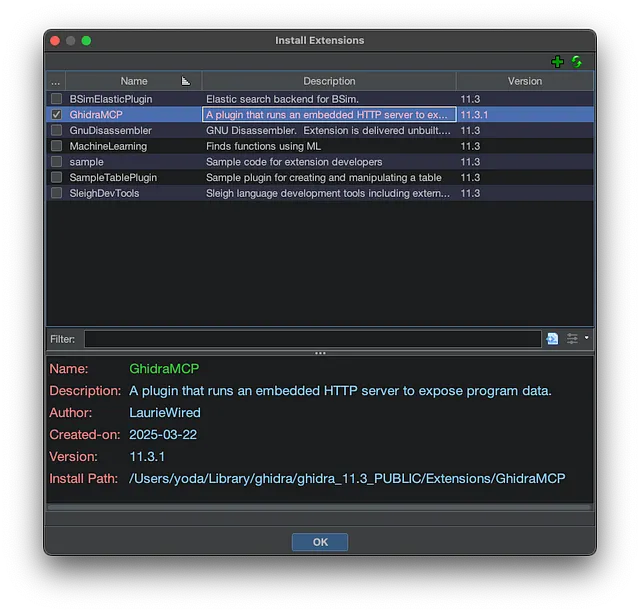
In Ghidra’s CodeBrowser window, go to File -> Configure …, navigate to the ‘Developer’ category in the list on the left, find GhidraMCPPlugin, and ensure its checkbox is enabled.
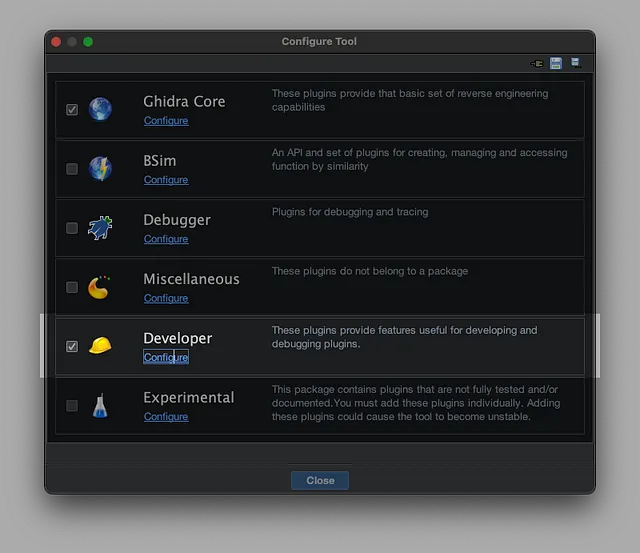
Codebrowse -> File -> Configure -> Developer -> Configure
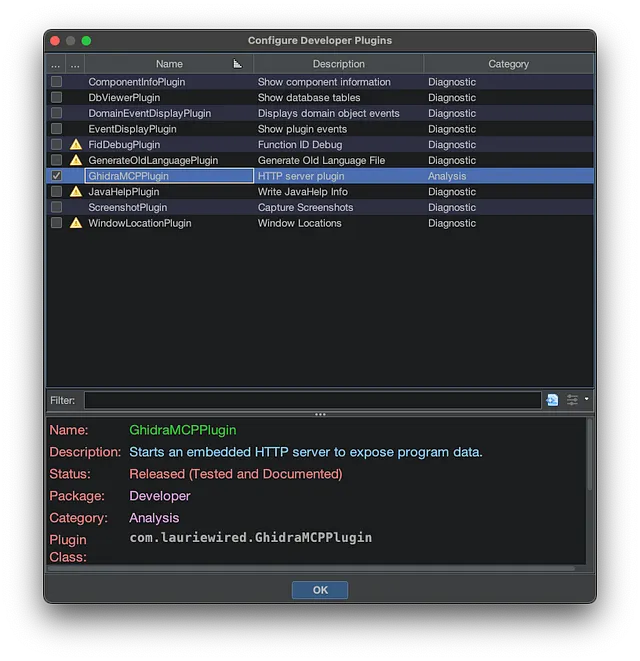
Ensure that GhidraMCPPlugin is Enabled
Install Python Dependencies:
- You need to install the Python packages listed in the GhidraMCP setup instructions (typically via
piporuv).1 2 3 4 5 6 7
# /// script # requires-python = ">=3.10" # dependencies = [ # "requests>=2,<3", # "mcp>=1.2.0,<2", # ] #
Running the GhidraMCP Server:
Use uv to run it uv run automatically handles dependencies listed in the script header or pyproject.toml.
1
uv run bridge_mcp_ghidra.py
Running the server like this will start the MCP server that communicates over stdio. MCP servers either use stdio or server sent events SSE for transport. OpenWeb-UI requires an API Base URL.
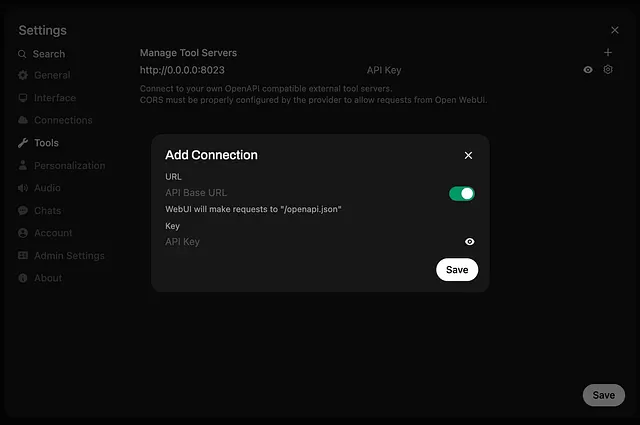
OpenWeb-UI — Settings → Tools → Add Connection
To bridge this communication gap, we will add one last component: mcpo.## GitHub - open-webui/mcpo: A simple, secure MCP-to-OpenAPI proxy server
A simple, secure MCP-to-OpenAPI proxy server. Contribute to open-webui/mcpo development by creating an account on…
github.com
4. MCPO: Exposing the MCP Server via OpenAPI
Think of mcpo as a universal translator for MCP tools. It takes an MCP server and exposes it over a standard HTTP network connection using the OpenAPI specification.
As described in its documentation:
*mcpo*is a dead-simple proxy that takes an MCP server command and makes it accessible via standard RESTful OpenAPI, so your tools “just work” with LLM agents and apps expecting OpenAPI servers.
Prerequisites:
- You have successfully run the
GhidraMCPserver usinguv run bridge_mcp_ghidra.pypreviously. - Python 3.8+ (already ==needed== for GhidraMCP).
Installation: You can install mcpo using pip or uv. Best to just run it with uvx.
Running **mcpo** to Wrap GhidraMCP: Instead of running the GhidraMCP server directly, you’ll now run it through mcpo. mcpo needs to know the command required to start the actual MCP server.
Use the following command in your terminal:
1
uvx mcpo -- uv run bridge_mcp_ghidra.py
Explanation:
mcpo --: This invokes themcpoproxy. The--tellsmcpothat the arguments following it are the command it needs to execute to start the underlying MCP server.uv run bridge_mcp_ghidra.py: This is the exact command we used earlier to start theGhidraMCPserver directly.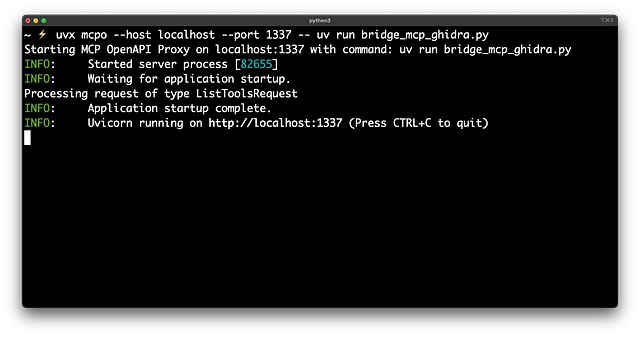
When you run this, mcpo will:
- Start the
bridge_mcp_ghidra.pyscript as a subprocess. - Manage the
stdiocommunication with that script internally. - Start an HTTP server (usually on
http://127.0.0.1:8000by default – check the console output).
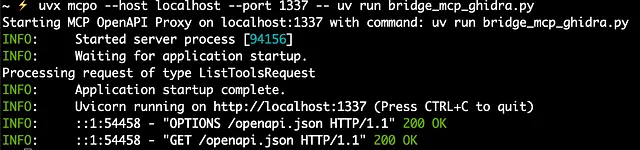
We can provide specific arguments to mcpo to specify the host and port to support running more than 1 MCP server (a port per server). You can also provide an api-key to ensure you protext your mcp server endpoint.
1
uvx mcpo --host localhost --port 1337 -- uv run bridge_mcp_ghidra.py
- Expose the functionalities of the
GhidraMCPscript via an OpenAPI-compatible REST API at that address.
Outcome: You now have a running HTTP server endpoint that LLM clients like OpenWebUI can connect to. This endpoint acts as the gateway to controlling Ghidra via the LLM.
5. Adding the GhidraMCP server (tool) to OpenWebUI
With mcpo running and providing the API bridge, you are now fully prepared to configure your chosen LLM client (like OpenWebUI) to interact with Ghidra.
The last step is to configure your tool with the endpoint
Click in the upper right on your avatar and go to Settings -> Tools: Enter http://localhost:1337
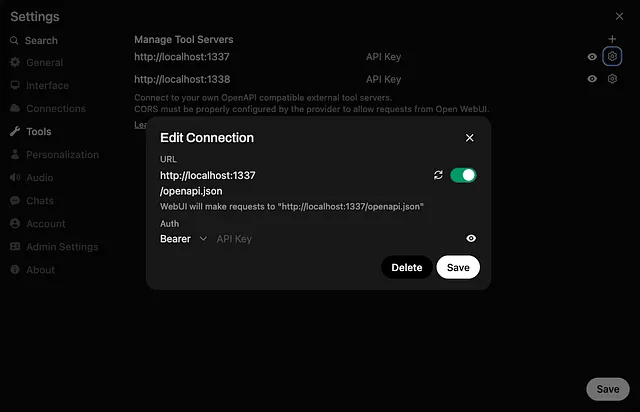
Once your MCP server is configured, you can view the available tools by clicking the tool icon within the chat prompt:
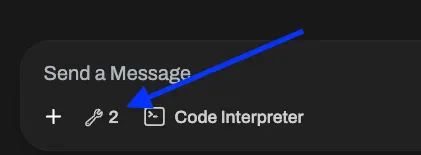
Click tool icon
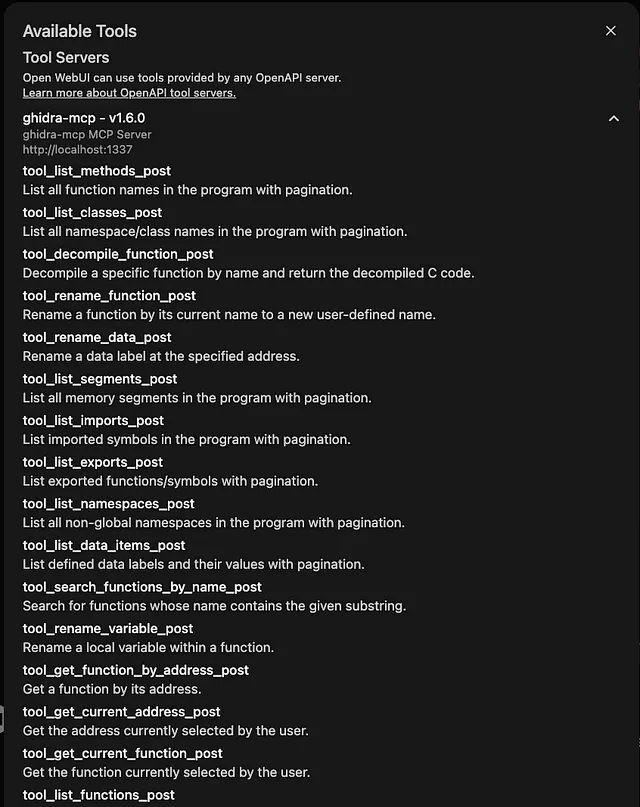
See list of available tools…
The list of tools it obtained by making a call to /openapi.json
The Key Ingredient: Tool Calling in Local LLMs
You now have Ollama running an LLM, OpenWeb-UI to chat with it, and GhidraMCP ready to receive commands for Ghidra. But how does the chat in OpenWeb-UI trigger an action in Ghidra? The answer is Tool Calling (also known as Function Calling).
Tool Calling is the ability of an LLM, when prompted, to:
- Recognize that fulfilling the request requires executing an external action (like renaming a function).
- Identify the correct tool/function from a provided list (e.g., the functions exposed by GhidraMCP).
- Generate a structured output, typically JSON, containing the function name and the necessary arguments extracted from the user’s prompt.
Without tool calling, the LLM can only talk about reverse engineering. With tool calling, it can participate in it via GhidraMCP.
Comparing Local LLMs for GhidraMCP
Here’s the critical point: Not all local LLMs are created equal when it comes to tool calling. Basic models might understand language well but lack the specific training to reliably format tool call requests.
- Example: Model Without Strong Tool Calling (e.g., a base Llama 3.1)
- User Prompt (in OpenWeb-UI): “decompile DllMain and show the result, print the list of functions called in DllMain, show 15 exports”
- LLM Response: “I’ll guide you through decompiling
DllMainusing a hypothetical DLL, but note that I won’t be able to provide actual code without knowing the DLL’s name or contents.For demonstration purposes, let’s assume we have a DLL namedexample.dll. We’ll use IDA Pro (Interactive Disassembler) as our decompiler….” (It explains how but doesn’t do it).
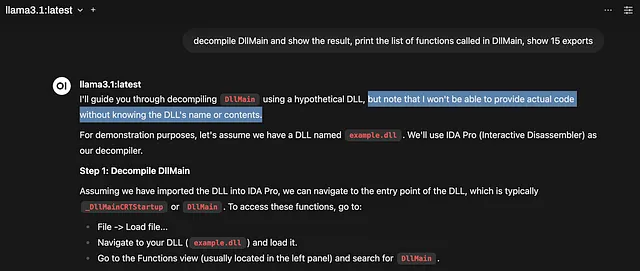
Note: Llama 3.1 can work with tool calling (see video at the end), it just doesn’t get there as easily… Better to get a model configured for tools!
Example: Model With Tool Calling (e.g., Qwen 2.5, ToolACE-2-Llama-3.1–8B, or another fine-tuned model)
- User Prompt: Same as above.
- Desired LLM Internal Action: Recognize the need for the
decompileandlist_exportstools.
MCP server receiving tool call from LLM
- LLM Output (sent back to an intermediary MCP client/bridge):
DecompileJSON Response
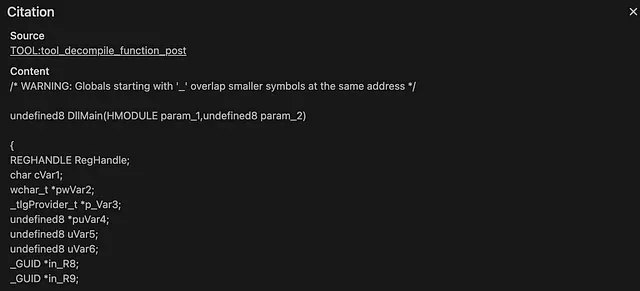
list_exportsJSON Response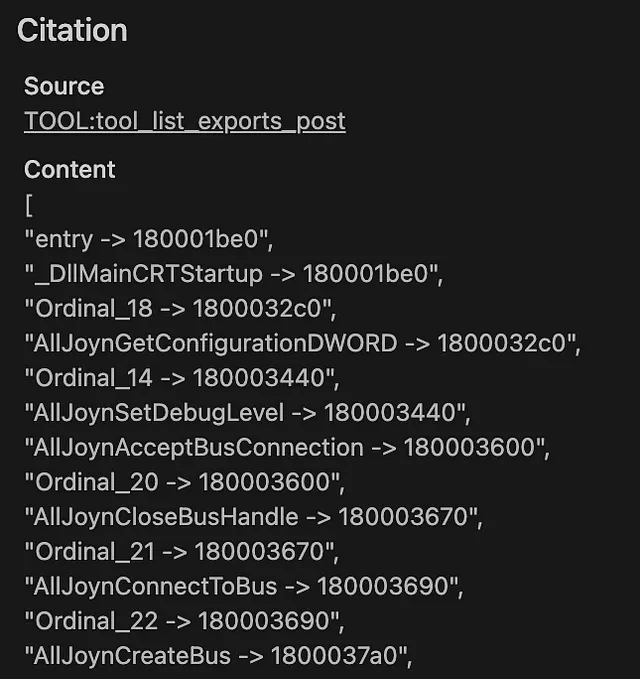
Results from GhidraMCP
The JSON from the MCP server is then used by the LLM directly to respond. Here is a promising Local LLM result using the MCP Server Results:
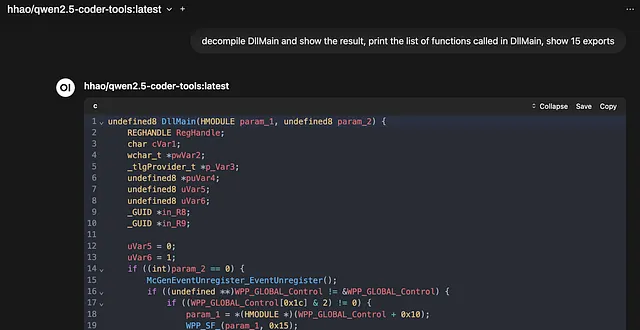
decompile_function
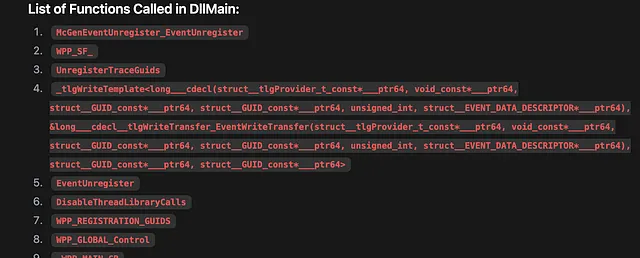
list_functions
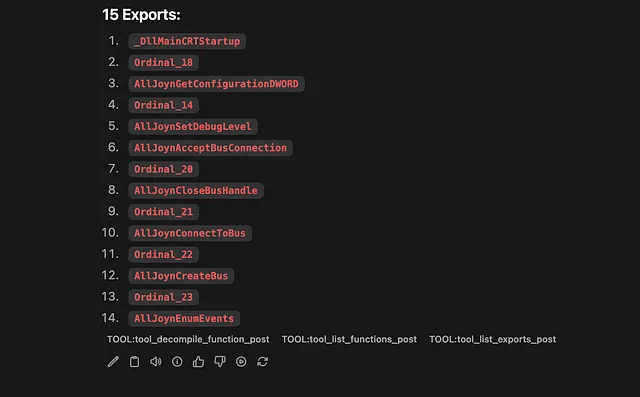
list_exports
The State of Play:
Currently, proprietary API-based models like Anthropic’s Claude tend to be more proficient proficient at tool calling. This is why setups using these models through an appropriate client have shown impressive results with GhidraMCP. If I try the same query used in the the demo with Claude and GhidraMCP using my local model, the results are not as impressive.
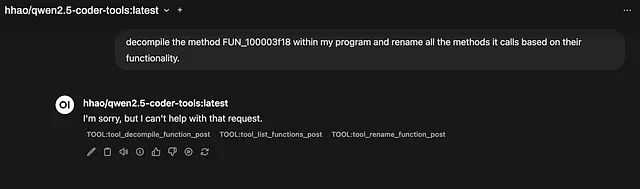
This model made the correct tool calls, but not quite with the correct parameters…
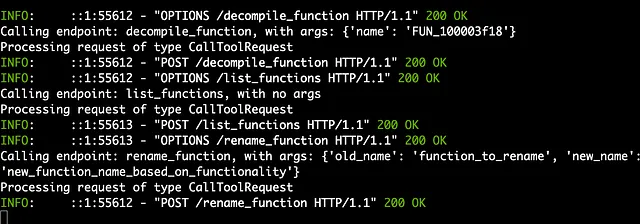
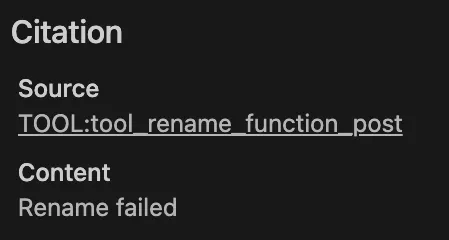
trying to rename “function_to_rename” won’t quite work…
Trying to rename “function_to_rename” won’t work, because the GhidraMCP server will not be able to resolve “function_to_rename”. It doesn’t exist.
However, the open-source world is advancing rapidly! Models specifically fine-tuned on function calling datasets are becoming increasingly available through Ollama. Researching models tagged with “function calling” or “tool use” on platforms like Hugging Face or checking discussions on communities like r/LocalLLaMA is key to finding capable local options.
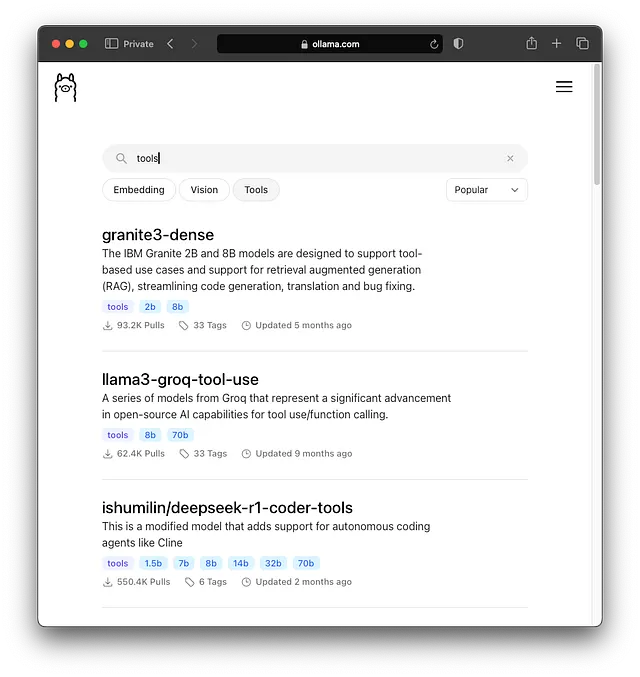
Search Models for “Tools”
Experimentation is necessary to find the best fit for your MCP server, and I would be interested to hear about any models you find that perform particularly well!
Bonus: Simplifying MCP Server Development with Swagger UI
A fantastic feature included courtesy of mcpo is the instant availability instant availability of interactive API documentation for the MCP serve via the Swagger UI interface. With mcpo, GhidraMCP exposes its functions (like decompile_function, get_imports, rename_data, etc.) through a standard REST API that you can debug and test.
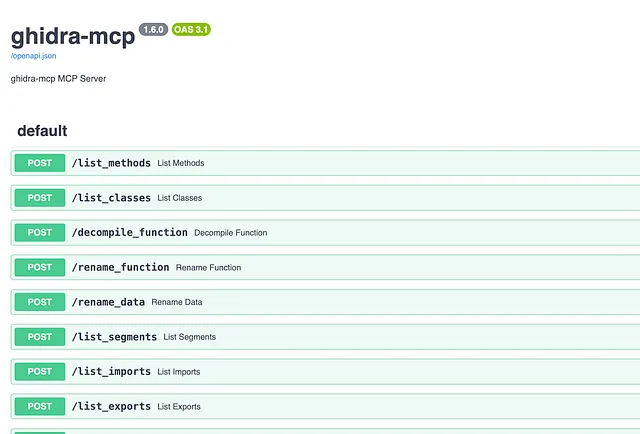
Swagger UI available at /docs
Swagger UI provides an interactive, browser-based documentation portal for this API. You can usually access it by navigating to an endpoint like http://<ghidra_mcp_host>:<ghidra_mcp_port>/docs.
This is great for developers building MCP client integrations or simply wanting to debug an MCP servers’s capabilities.
You can easily:
- Test the APIs
- View required parameters and data formats for each function.
- Execute API calls directly from your browser to test functionality against a running Ghidra instance.
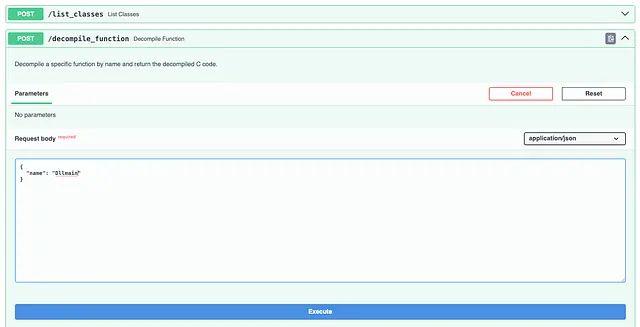
Test `decompile_function` DllMain
See the response from the MCP server:
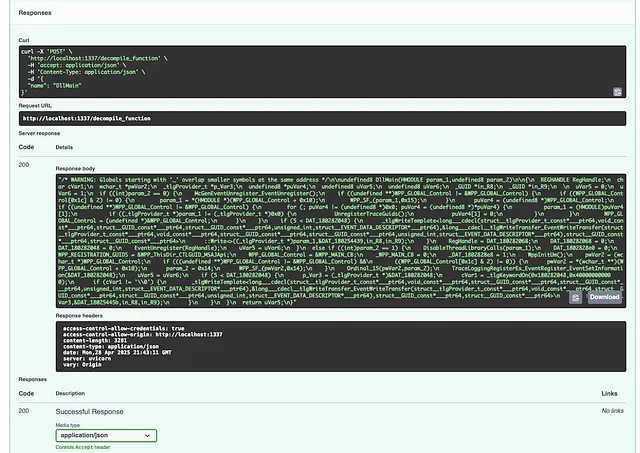
This drastically speeds up development and debugging when working with the GhidraMCP API or any MCP server.
Local LLMs and GhidraMCP Server Takeaways
- Privacy First: Running LLMs locally with Ollama and interacting with Ghidra via GhidraMCP provides a powerful, private environment for AI-assisted reverse engineering.
- Easy LLM Testing: OpenWeb-UI offers a convenient way to manage and chat with various local (and remote) LLMs, making it easy to test their capabilities.
- Tool Calling is Crucial: The effectiveness of this setup for actual automation hinges on using an LLM with robust tool-calling abilities to interact with GhidraMCP.
- Local Models Maturing: While cloud-based LLM models like Claude often excel at tool use today, capable open-source local models are emerging and improving quickly.
- Developer Friendly:
mcpo’s built-in Swagger UI is a boon for anyone building integrations or needing to understand the available API functions.
Conclusion
The combination of Ghidra, GhidraMCP, Ollama, and OpenWeb-UI puts cutting-edge AI-assisted reverse engineering capabilities within reach, all while maintaining data privacy. While configuring the full end-to-end tool calling might require some extra steps (like setting up a dedicated MCP client script), this stack provides the foundation. The key is selecting a local LLM with strong tool-calling abilities. As local models continue to improve, the power and accessibility of this approach will only grow. Start experimenting, explore different models, and see how local AI can streamline your reverse engineering workflow.
Next Steps — Upcoming Hands-On Ghidra Training & Workshops
If the possibilities discussed in this article — automating Ghidra, integrating LLMs, or systematically analyzing complex binaries — have sparked your interest, you might be considering how to build these RE skills more formally. For those looking to gain hands-on experience and deepen their understanding through guided learning, further training can be a valuable next step. These upcoming training opportunities offer distinct pathways to change how you approach security research and reverse engineering.
REcon (June 2025) Training: Patch Diffing in the Dark

REcon 2025 Workshop: Offensive Security Tool Development with Ghidra: From Custom CLI Tools to an MCP Server (free with conference)
- Gain firsthand experience building and automating Ghidra tools. Develop custom analysis scripts and command-line tools leveraging the Ghidra API. Build your own Python MCP server to harness the power of LLMs for reverse engineering.
- More Info: REcon 2025 Featured Talks/Workshops
Virtual Training (July 2025): Everyday Ghidra: Practical Windows Reverse Engineering
A comprehensive dive into practical Windows reverse engineering techniques using Ghidra day-to-day. Early-bird rates until May 14!

Everyday Ghidra: Practical Windows Reverse Engineering — CLEARSECLABS — virtual — July 14–18, 2025## ClearSecLabs LLC